The whole picture
Accounts, investments, property, debts, spending and goals—not one disconnected balance.
 Guaca
GuacaConnect Guaca once, then talk to your complete financial picture from the AI assistant you already use. No exports, no screenshots, and no re-explaining your numbers in every conversation.
One secure connection
Based on your recurring income, expenses and current savings rate, another $500 per month keeps your cash flow positive. Your retirement projection reaches its target about 2 years earlier.
Illustrative answer. Your assistant uses your actual Guaca data.
Accounts, investments, property, debts, spending and goals—not one disconnected balance.
Turn a financial dashboard into a conversation. Follow up, compare scenarios and go deeper.
OAuth permissions, isolated account data and reversible access. Disconnect whenever you want.
Guaca gives the assistant clean, structured numbers. That means you can start with a broad question, challenge the answer, and keep drilling down without copying a single total into the chat.
Separate market moves, contributions and currency effects.
Compare categories, merchants and periods from your real ledger.
Use your portfolio and Guaca's deterministic and Monte Carlo projections.
See accounts and assets together, converted with current and historical FX.
Add Guaca as a custom connector, sign in, and approve the access you want to grant. Your Guaca password is never shared with the assistant.
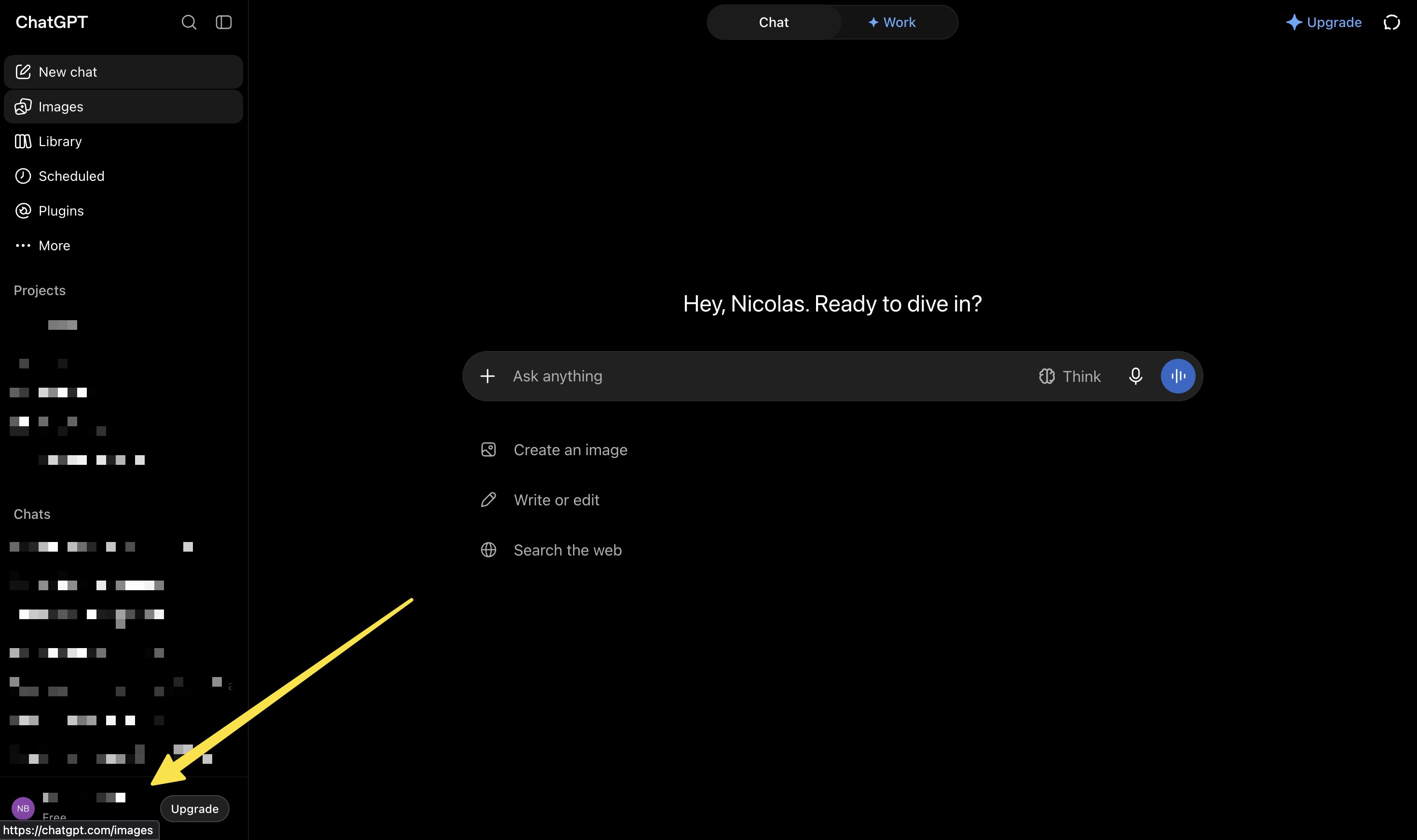
https://useguaca.com/api/mcp1In ChatGPT on the web, select your profile at the bottom left and open Settings.
 Open full-size screenshot (new tab)
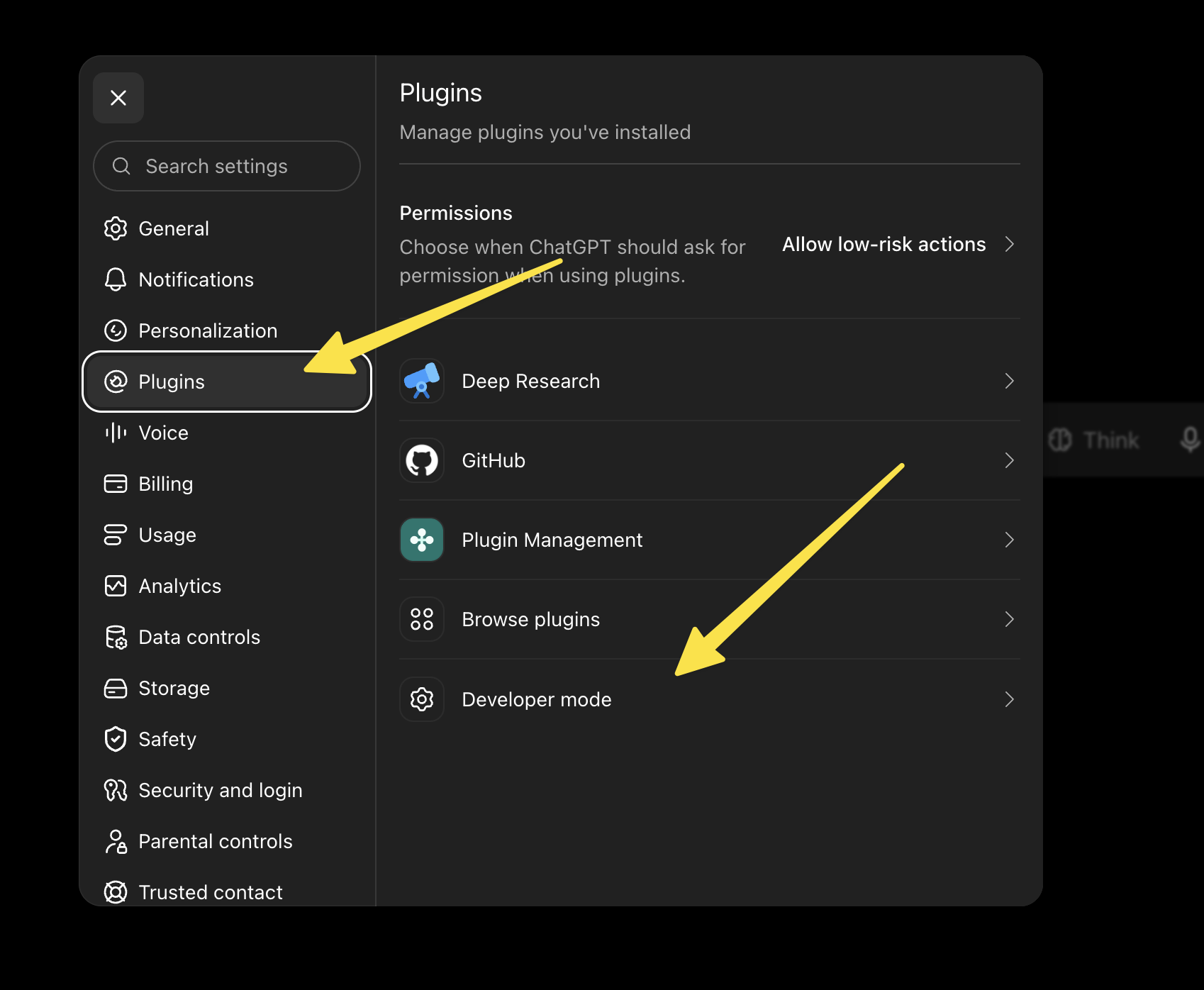
2In Settings, select Plugins, then Developer mode.
 Open full-size screenshot (new tab)
3In Security and login, turn on Developer mode.
 Open full-size screenshot (new tab)
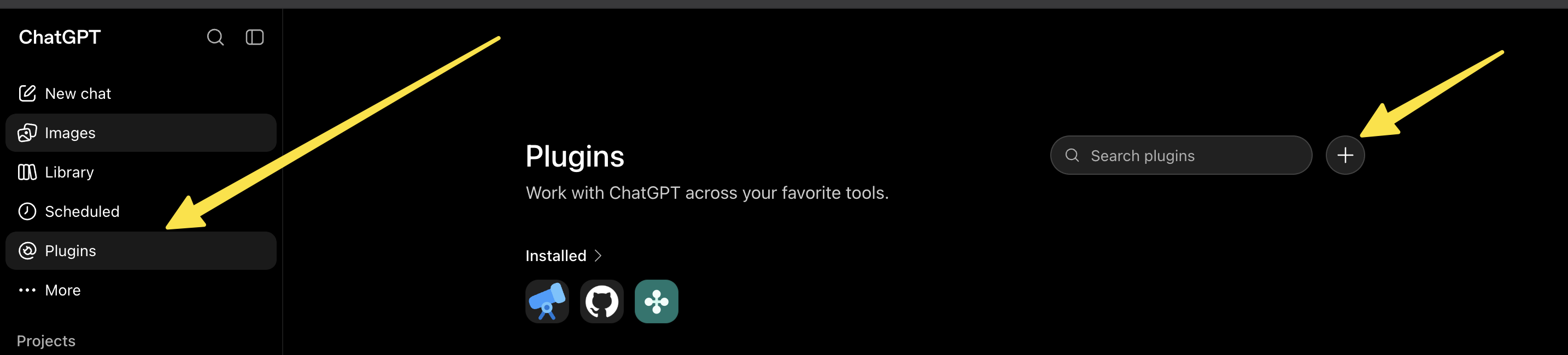
4Close Settings, open Plugins in the sidebar, and select the plus (+) button.
 Open full-size screenshot (new tab)
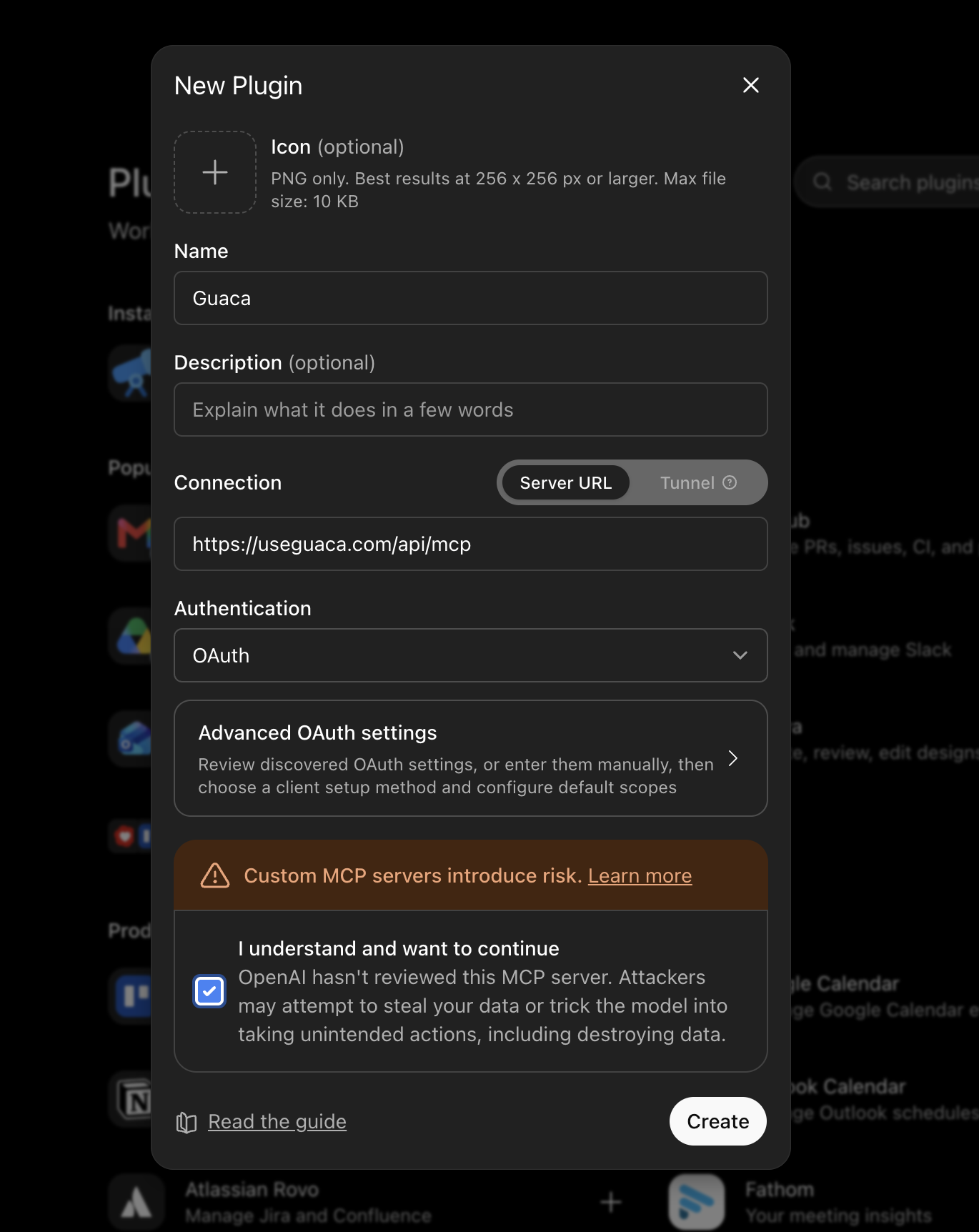
5Enter Guaca as the name and https://useguaca.com/api/mcp as the Server URL. Choose OAuth, review the notice, check the acknowledgment if you agree, and select Create.
 Open full-size screenshot (new tab)
Sign in to Guaca and review the requested access to finish connecting.
Developer mode availability depends on your account and workspace policy.
Remote connectors are available on Claude Pro, Max, Team and Enterprise.
Platform menus and availability may change. See the current setup documentation for ChatGPT and Claude.
The assistant gets tools, not a database key. Guaca checks every request against your signed-in account and the permissions you approved.
Read our privacy policyGrant financial read access without letting the assistant propose new transactions.
There are no tools for transfers, trades, withdrawals or bank-account changes.
Even with write access, you review and confirm it in Guaca before it affects balances, cash flow, or reports.
See connected apps in your Guaca account and disconnect any of them whenever you want.
Thirteen tools are read-only. The only write tool requires separate permission and can create only a pending bookkeeping entry. Tool results are scoped to the signed-in Guaca account.
get_net_worth_summary, get_net_worth_history, list_accounts, list_holdings, list_assets, list_liabilitiessearch_transactions, spending_by_category, list_categories, list_recurring_payments, list_savings_goalsget_fx_rates, get_retirement_projectioncreate_pending_transaction, update_transaction, update_transactions, delete_transaction — private bookkeeping edits only; no money ever movesRemove the connector and add it again using the exact HTTPS address above. Allow pop-ups, then complete Guaca sign-in in the same browser session.
Your connection has read-only access. Disconnect it, reconnect, and approve guaca:write only if you want the assistant to create, edit or delete entries.
Ask it to list the available accounts or categories first, then retry with the exact returned name or account id.
Check that Guaca Pro is active, reconnect from Connected apps, and try again. If it persists, contact support and choose Security or privacy for OAuth concerns.
Still stuck? Use the public Guaca support form or email [email protected].
Model Context Protocol is an open standard that lets AI assistants connect to external tools and data. Guaca's MCP server gives an assistant a structured, permissioned way to answer from your financial data instead of relying on pasted screenshots or made-up context.
No. Guaca does not expose any tool that can transfer money, trade, withdraw funds or change a bank account. If you grant write access, the assistant can only create a pending income or expense for you to review. It affects nothing until you confirm it in Guaca.
Yes. Connecting an external AI assistant through Guaca MCP is a Guaca Pro feature. You can create your Guaca account and start organizing your financial picture before upgrading.
Plan availability and workspace controls are set by OpenAI and Anthropic and may change. Follow the current platform documentation linked in the setup section; Guaca itself requires an active Guaca Pro entitlement.
Guaca's built-in chat is the quickest way to ask about your money inside the app. MCP brings the same financial source of truth into the assistant where you already think and work, so you can combine it with documents, research and other connected tools in one conversation.
Bring your finances together in Guaca, then connect the assistant that helps you think them through.