
What you can track
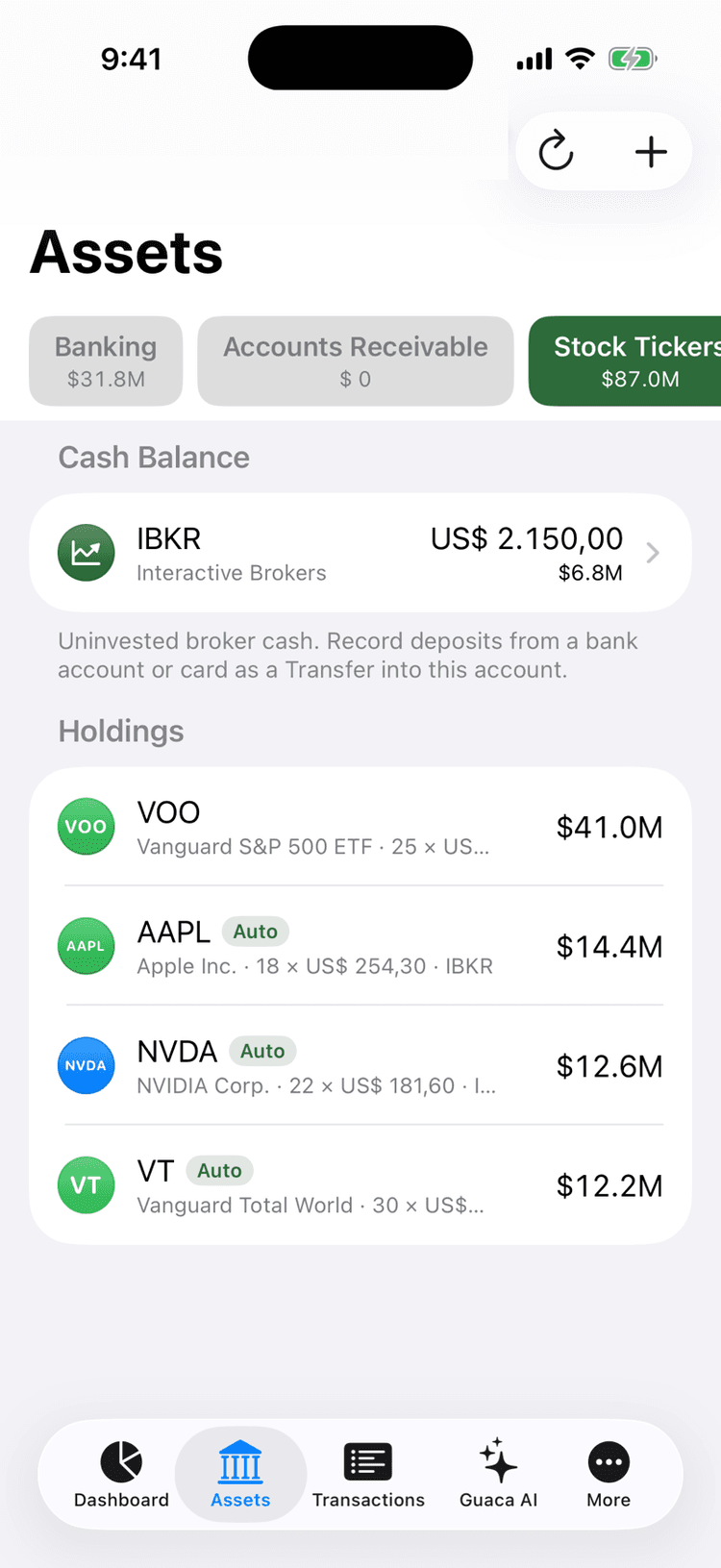
The Net Worth tab groups what you own into chips along the top. Select a chip to see its items, then tap + in the toolbar to add one of that kind.
- Stock Tickers
- Stock/ETF holdings and brokerage cash accounts.
- Crypto Tickers
- Crypto holdings and exchange or wallet cash.
- Homes
- Real estate you own.
- Cars
- Vehicles.
- Domains
- Internet domains you hold.
- Precious Metals
- Gold, silver, platinum, palladium (in grams).
- Others
- Bonds, pension funds and anything else with a value.
- Banking
- CDTs (term deposits) live here with your accounts.
- Insurance
- Policies (reference only); never part of net worth.
Guaca uses two models. A holding is a ticker position: quantity × price, with buy and sell lots behind it. An asset is everything else, tracked as one value (or grams × price for metals). Use holdings for stocks, ETFs and crypto.
Stocks, ETFs, crypto, bonds, CDTs, pension funds and metals are Investable by default; real estate, vehicles, domains and other assets are not. You can change Investable and Liquid on any item's form.
Stocks and ETFs
Select the Stock Tickers chip and tap +, or Add Holding if the chip is empty. You can also open the quick-add sheet from the tab-bar + (tap it on the Net Worth tab, long-press it elsewhere) and choose Stock or ETF.
- 1Answer Is it a stock or an ETF?
- 2Search by Ticker or company and pick the listing. Non-US listings carry an exchange suffix, for example
CSPXCO.CL; picking one adopts its currency and price. - 3Confirm or edit the name.
- 4On Currency and value, keep Auto-update price on, enter the Quantity and check the Price (auto). Turn auto off to type a Price (native) yourself.
- 5Tap Create holding and review the details form.
- Account / Broker (optional)
- Link a brokerage account (its cash shows alongside) or type a broker name.
- Symbol
- The ticker you picked.
- Auto-update price
- Refreshes the quote; off keeps your price.
- Position
- Quantity × Price = Current value.
- Investable / Liquid
- Classification flags for reports.
- Lots
- Your buys and sells; Add Lot records one (see below).
- Cost Basis
- From lots: Cost of position, Average cost, Unrealized P&L (Capital gain + Currency gain), Realized P&L and IRR (annualized).
Crypto
Select the Crypto Tickers chip and tap + (or Add Holding), or choose Crypto in the quick-add sheet. The wizard first asks How do you track this crypto? — Manual or Wallet.
- 1Choose Manual and answer Which coin is it? by searching for the coin; prices are in USD.
- 2Confirm the name.
- 3On Currency and value, enter the Quantity and keep Auto-update price on, or turn it off and type your own price.
- 4Tap Create holding. The details form is the same as for stocks: account, position, lots and cost basis.
Wallet tracks an on-chain wallet for you. Paste a public address or XPUB and Guaca's server creates a read-only automatic crypto account for it; you don't enter quantities or lots by hand.
Cash in a crypto exchange or wallet account appears under the chip's Cash Balance, and holdings are grouped by that account. Pick the account in the holding form so buys and sells can move money from it.
Recording buys and sells (lots)
Every purchase or sale of a holding is a lot. Lots drive the cost basis, gain badges, P&L and IRR you see on the holding and across the hub. Open a holding and tap Add Lot to record one.
- Buy / Sell
- Adding to or reducing the position.
- Date
- When the trade happened.
- Quantity
- Units bought or sold.
- Price (CUR)
- Price per unit in the holding's currency.
- Fees
- Added to a buy's cost or taken from a sell's proceeds.
- Note
- Optional free text.
- Pay from / Deposit proceeds to
- Optional account for the cash.
If you choose an account, saving writes a mirror transaction there — an expense for cost plus fees on a buy, an income for the net proceeds on a sell — and the balance updates. Re-saving the lot replaces the old mirror; deleting the lot deletes its mirror and reverses the balance.
You can also start from the ledger: in the transaction form, open the Investment card, pick Buy or Sell, choose the target under Holdings and enter the quantity (leave it empty to derive it from the current price). Saving logs the expense or income on the account and the lot on the holding; such lots are read-only on the holding side. See Transactions.
- 1Open the holding and tap Add Lot.
- 2The New Lot sheet opens; choose Buy or Sell, fill in the fields and save.
Once any lot exists, the hub shows a Performance link with your portfolio's cost basis, current value, IRR and closed positions.
Precious metals
Gold, silver, platinum and palladium are tracked by weight. Guaca converts the metal's spot price to a price per gram and adjusts it for purity, so the value follows the market.
- 1On the Net Worth tab, select the Precious Metals chip and tap + (or Add Metal), or tap the tab-bar + and choose Precious metal.
- 2Under What type of asset is it?, pick gold, silver, platinum or palladium.
- 3Give the asset a name.
- 4Under What's the purity?, pick a preset (gold 24k–10k; silver Fine, Britannia, Sterling, Coin; platinum 999/950/900; palladium 999/950/500) or choose Custom and type the Purity %.
- 5Under Currency and value, enter the Grams; Price per gram (auto) fills in from the spot price.
- 6Tap Create asset, review the form and tap Done.
The effective price is spot × purity, and the value is grams × effective price. Weight is always entered in grams.
Real estate, vehicles and domains
Homes, cars and domains are assets with a single value you set yourself. Select the Homes, Cars or Domains chip and tap + (or Add Home, Add Car, Add Domain), or tap the tab-bar + → Other asset → Real Estate, Vehicle or Domain.
- 1Name the asset — for a domain the step is Which domain is it?, e.g.
example.com. - 2Under Currency and value, pick the currency and enter what it is worth today.
- 3Tap Create asset, complete the details below and tap Done.
- Value
- Current worth of the home. Guaca may show an IPVU estimate (Colombia) or Index estimate (elsewhere) beside it — a reference only; it never changes the value you entered.
- Where is this asset located?
- Country of the property. Colombian homes also get Tax value (COP).
- Property type · Address · Area (m²)
- Descriptive details of the home.
- Make · Model · Year · Plate · Mileage (km)
- Vehicle details.
- Registrar · Expiry date
- Where the domain is registered and when it renews.
- Estimated value
- Domains only: a marketplace appraisal fetched through Guaca's server (requires signing in). Tap Use marketplace estimate to adopt it; otherwise the value stays manual.
- Acquisition date · Purchase price (CUR)
- Fill these in to see Gain/Loss, split into Capital gain and Currency gain.
To record money put into an asset (a renovation) or taken out (a partial sale), use Apply to in the transaction form: a contribution adds to the value, a partial sale subtracts. Entries show in the form's Contributions list; deleting one lowers the value but keeps the bank transaction.
CDTs, bonds and other assets
A CDT (term deposit) lives under the Banking chip. The quickest way to add one is the tab-bar + → CDT.
- 1Name the CDT and open Currency and value.
- 2Enter the amount, then under Funding set the Opening date and, optionally, Pay from — the opening amount leaves that account as a contribution.
- 3Tap Create asset and set the yield and maturity in the form.
- Annual yield (%)
- The rate the bank pays you.
- Maturity date
- When the deposit ends.
- Notify
- Reminder 1–90 days before maturity (7 by default).
At maturity open the CDT, go to Manage → Close CDT, set the Closing date, enter the Final balance and pick Deposit to: Guaca records the income on that account and archives the CDT.
The Others chip holds anything else with a plain value. Tap + or Add Asset, answer What type of asset is it? with Bond, Pension Fund, Cash or Other, then name it and enter its currency and value. Bonds have no chip of their own.
- Investable
- Treats the asset as an investment. On by default for stocks, ETFs, crypto, bonds, CDTs, pension funds and metals; off for real estate, vehicles, domains and other assets.
- Liquid
- Marks it as quickly convertible to cash.
Prices, valuations and history
- Stocks and ETFs: quotes in the listing currency of the ticker.
- Crypto: market prices in USD.
- Precious metals: spot price in USD per ounce, converted to your currency per gram.
- Exchange rates come from official sources (the TRM for COP plus a global FX feed) and are always free.
Prices refresh at app launch, in the background and — on Android — when you pull to refresh the Net Worth hub or Dashboard (iPhone has no pull-to-refresh). Only items with a quantity and Auto-update price on are touched.
For a manual valuation, open the asset, change the value (or grams and price) and save; every save writes a snapshot. Valuation history lists them, merging equal values and captioning each change as Initial tracked value, Appreciation of or Depreciation of. Rows can be deleted.
When you sell or lose an asset, archive it: go to Manage → Archive asset, choose a Reason (Matured, Sold, Lost, Given away or Other), set the Archive date and, optionally, the Money received and the account to Deposit to — Guaca logs the income. Archived items leave your net worth but keep their history; toggle Show Archived (N) on the hub and use Unarchive asset to bring one back. On iPhone, long-press a row for Edit, Archive and Delete.
Insurance policies live under the Insurance chip (Add Policy) with Insurer, Policy number, Type, Coverage, Premium, how often it is Paid, an optional Renewal Date and an Active switch. They never count toward net worth — coverage is protection, not an asset.