
What Guaca is
Guaca is a personal finance and net-worth tracker. It keeps your day-to-day money (accounts, transactions, budgets, income and savings goals) and your bigger picture (investments, other assets, debts, reports and a retirement planner) in one place, and adds AI to import statements, capture purchases and answer questions about your data.
It runs on Android, iPhone, iPad, Mac and the web. Guaca is offline-first: everything works without a connection and is stored on your device. Every account, holding, debt and transaction keeps its own currency; totals are converted to your display currency at current exchange rates.
- Accounts and Transactions cover your everyday money.
- Budgets and income, Assets and investments and Debts build your net worth.
- Reports, Time Travel and Guaca AI help you understand where you are and where you're going.
Install and first launch
Install Guaca from Google Play (Android) or the App Store (iPhone, iPad and Mac). The first time you open it on a device with no accounts, a short setup tour walks you through the basics. Each step is saved as you advance, and you can change every answer later.
- 1Welcome — sign in with Apple, Google, Microsoft or email, or tap Continue without an account.
- 2Confirm your setup — check the Country, Display currency and App language prefilled from your device. The currency follows the country until you change it yourself; the language applies immediately.
- 3What do you want Guaca to do for you? — choose one or more goals: Control my spending, Save for a goal, Build wealth, Reach financial freedom, Track my investments or Get out of debt.
- 4Which one matters most to you? — shown only if you picked two or more goals; your home screen highlights this one.
- 5Let's build your financial map — tap Import my data to open the importer when the tour ends, use a quick wizard for a bank account, stock, crypto, metal, real estate or vehicle, or tap I'll add things as I go.
- 6Add your debts or Create my goals — optional steps that appear if you chose Get out of debt or Save for a goal; skip them with I'll add debts later or I'll create goals later.
- 7Want Guaca to find your next purchases? — tap Enable automatic capture to let Guaca read purchase notifications on your phone and draft transactions for you to review, or tap Not now. This is opt-in.
- 8We're ready to start — see your starting Available balance and Holdings, then tap See my Guaca. If you chose financial freedom, you can also tap Complete my financial freedom plan or Do it later.
Sign in or continue without an account
Guaca uses the same accounts as the web app at useguaca.com. Sign in with Continue with Apple, Continue with Google, Continue with Microsoft or Continue with email. On iPhone, iPad and Mac, Sign in with Apple is native; on Android, Apple, Google and Microsoft open in a browser tab.
The email flow starts with Enter your email. Guaca checks whether that address already has an account and takes you to the right screen:
- Existing account
- You see Welcome back and enter your Password.
- New email
- You see Create your account, choose a password (at least 8 characters), then enter the 6-digit code from the Check your email message and tap Verify. Use Resend code if it doesn't arrive.
- Forgot your password?
- Tap it on the password screen, enter the 6-digit code Guaca emails you, then set a New password.
- Account created with Apple, Google or Microsoft
- If you type that email, Guaca shows You already have a Guaca account and tells you which provider to use instead.
You don't need an account to use Guaca. Tap Continue without an account on the welcome screen and everything (accounts, transactions, budgets, reports and more) works fully on your device. You can sign in later from the account row at the top of the side menu or from the banner in Settings.
Signing in links the device to your Guaca account, so your plan and Pro features follow you, and it is the first step to keeping your data in sync across phones, tablets, computers and the web. If you sign in during the tour with an account that already has data, Guaca downloads it (Syncing your data…) and ends the tour.
To sign out, open the account screen from the side menu and tap Sign out. Signing out keeps your data on this device.
A tour of the interface
On Android and iPhone, Guaca is organized around five bottom tabs and a side menu. The tabs are:
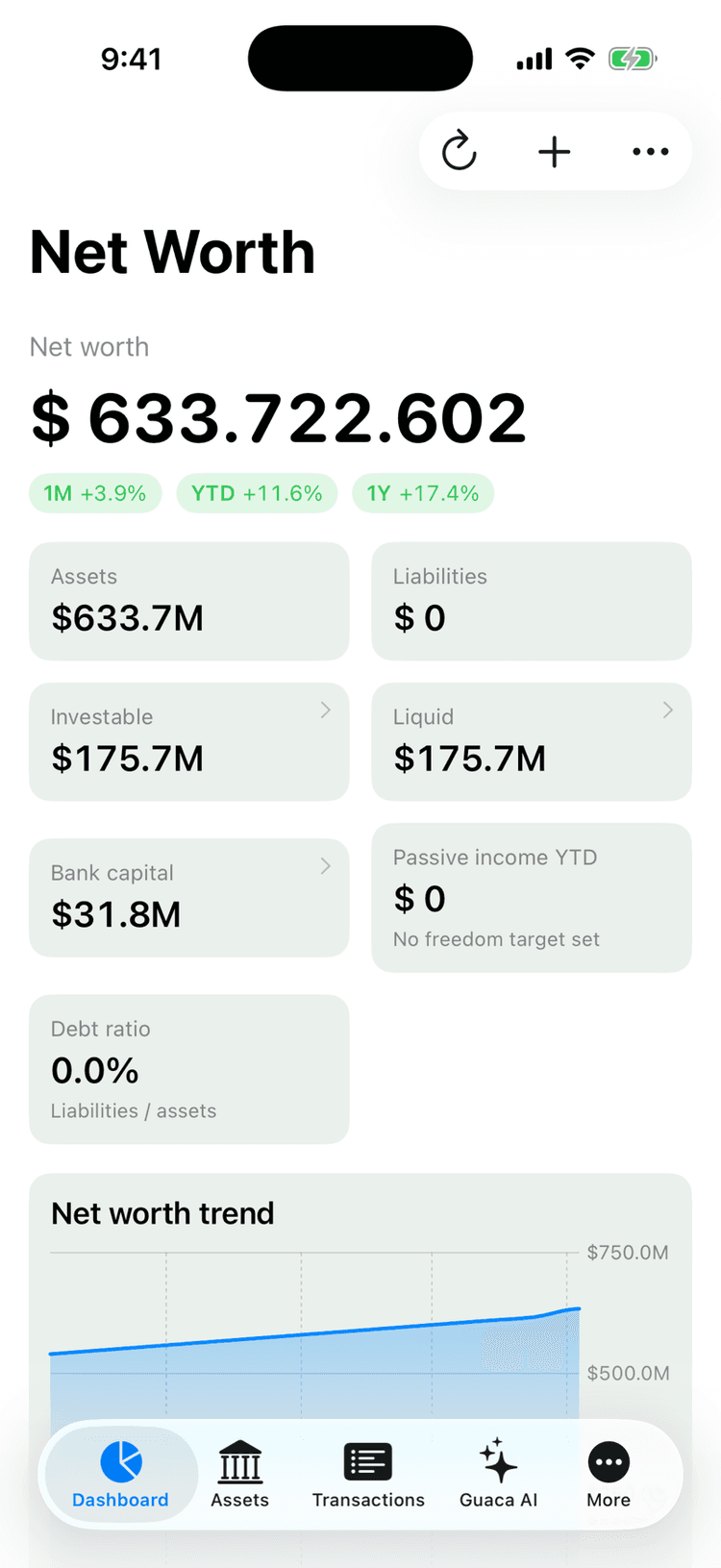
- Dashboard — your home screen; its cards are ordered around the goal you picked during setup.
- Net Worth — everything you own and owe: accounts, investments, other assets and debts.
- + — the quick-add button (see below).
- Transactions — the full list of your transactions.
- Reports — charts and breakdowns of your money over time.
The center + does two things: tap it to add a transaction, or long-press it to open the full quick-add menu. On the Net Worth tab a tap opens the menu directly, and if you have no accounts yet a tap takes you to the new-account form. The menu offers Transaction, Bank account, CDT, Stock or ETF, Crypto, Precious metal, Other asset (real estate, vehicle, domain and more), Debt and Receivable.
Everything else lives in the side menu:
- 1Tap the Menu button (three lines) at the top-left of any tab, or swipe in from the left edge of the screen.
- 2Tap any item to open it, or close the menu by tapping outside it or swiping it back to the left.
- Account row (top) — your name or email, or a prompt to sign in, plus the sync status icon.
- Guaca AI — chat about your finances.
- Money Management — Income, Budget, Savings goals (called Goals on iPhone) and Recurring (Planned & Recurring on iPhone).
- Time Travel — Back in Time and Retirement.
- Organization — Categories and Tags.
- Data & Connections — Import, Automate and Settings.
Display currency and multicurrency
Guaca is multicurrency by design. Every account, holding, debt and transaction stores its own native currency and amount, so a euro account stays in euros and a dollar stock stays in dollars. Totals such as your net worth and dashboard balances are converted to one display currency at current exchange rates.
Exchange rates are free on every plan and update automatically in the background (and daily from the server when you're signed in).
You choose the display currency in the Confirm your setup step of the first-launch tour. To change it later:
- 1Open the side menu and tap Settings.
- 2Tap Display (Currency, exchange rate & language).
- 3Tap Display currency and pick a currency.
Free vs Guaca Pro
Guaca has a free plan and a paid plan, Guaca Pro. Your current plan appears as a Guaca Free or Guaca Pro pill and on the account screen. On the free plan you can use accounts, transactions, budgets, income, savings goals, debts, assets and investments, reports, the retirement planner, Back in Time, CSV and Money Pro import, one PDF statement import per month and five AI-classified purchase captures per month. Exchange rates are always free.
Guaca Pro adds:
- Cross-Platform Sync — keep your data in sync across iPhone, iPad, Mac, Android and the web.
- Guaca AI — chat with an assistant that answers questions about your own data.
- Automatic Accounts — connect Wise, PayPal, IBKR, Expensify and crypto wallets.
- SMS, Apple/Google Pay & Email — AI-classified captures beyond the five per month included in the free plan.
- Receipt Scanning — create transactions from photos of receipts.
- Statement Import — up to 30 PDF statements per month instead of one.
- Live market prices for stocks, crypto and precious metals.
Where to go next
The rest of this guide is organized by area. Start wherever matches what you want to do first:
- Accounts — add bank accounts, cash and CDTs, and keep balances right.
- Transactions — record and review your transactions, and organize them with categories and tags.
- Budgets and income — plan your income, set budgets and save toward goals.
- Assets and investments — track stocks, ETFs, crypto, precious metals, real estate, vehicles and other assets.
- Debts — follow what you owe and what others owe you.
- Reports — read the charts and breakdowns behind your numbers.
- Import and capture — bring in statements and files, and let Guaca capture purchases automatically.
- Time Travel — look back with Back in Time and ahead with the retirement planner.
- Guaca AI — ask questions about your finances in plain language.
- Sync and settings — sign in, sync across devices, and adjust language, theme, privacy and more.
Stuck, or found something that doesn't look right? Contact support and we'll help.